Notifications
Plainly provides a flexible notification system that keeps you and your team informed about important events.
Configuration
Notification settings let you decide which organization events trigger notifications, who receives them, and how they are delivered. They can be customized per organization, as well as by individual users to suit personal preferences.
Organization notifications
Organization notification settings can be found and managed in Settings > Notification settings .
Each notification can be enabled or disabled, with the following customization options:
- Recipient roles - choose whether notifications go to organization owners, members, or both.
- Delivery channels - select email, in-app notifications, or both for how notifications are delivered to recipients.
- Additional email recipients - specify extra email addresses to receive notifications beyond the selected roles.
Some notification types provide further configuration options that let you fine-tune when and how notifications are sent, such as:
- Usage thresholds - for usage alerts, you can set custom percentage thresholds (e.g., 80%, 100%) that trigger notifications when rendering usage approaches plan limits.
Notification types
There are several types of organization notifications available. Here’s a summary of each type, what they cover, their default delivery method, and any additional configuration options:
| Type | What it covers | Default delivery | Configuration |
|---|---|---|---|
| Integrations & uploads | Integration errors, failed deliveries, or workflow issues. | Email + in-app to all members. | - |
| Usage alerts | Rendering usage approaching plan limits (percent-based thresholds). | Email + in-app to owners. | Usage thresholds for rendering minutes (defaults to 80% and 100%). |
| Billing | New invoices and billing updates. | In-app to owners (email optional). | - |
| Onboarding tips | Welcome and setup guidance for new teammates. | Email to all members. | - |
User preferences
Individual users can set their own notification preferences in Account settings > Notification preferences . They can choose to inherit the organization defaults or opt out of specific notification types. Personal preferences override the organization settings for that user, allowing them to tailor their notification experience.
Receiving notifications
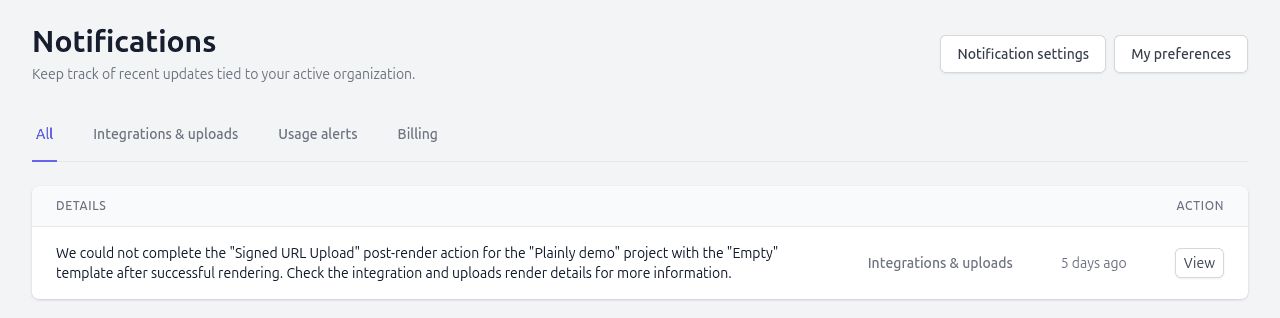
Based on your notification settings, you may receive notifications via email or see them in your in-app notifications inbox. In-app notifications can be found on the Notifications tab in the dashboard, where you can review and sort through past messages based on type.
For email notifications, be sure to check your inbox (and spam folder) for any notifications sent based on your
configured settings. We suggest whitelisting the Plainly email address notifications@plainlyvideos.com to ensure
delivery.