Render options
Advanced render options are accessed through the top-right button in the single render form and can also be configured using batch rendering, integration-based invocation, or the API. These options allow you to add captions, export thumbnails, and more.
Render options can also be set on a template level, which means that every time you render a video from that template, these options will be applied.
Captions
To enable captions, go to the Captions section of the Output Format settings and provide the URL to a captions file. Plainly supports two formats:
- SRT — simple subtitle format with timestamps and plain text. Styling and positioning are not defined in the file itself; instead, they are configured in Plainly using predefined styles or a custom style object. The subtitle file is provided via URL.
- ASS — Advanced SubStation Alpha. A more powerful subtitle format where all styling (fonts, colors, positioning, override tags) is defined within the file itself. Plainly requires only the file URL and, optionally, URLs for any custom fonts referenced in the file that are not already available in the project.
Use the Switch to ASS / Switch to SRT link in the captions form to toggle between the two formats. The default is SRT.
SRT captions
Provide the URL to your .srt file via the srtFileUrl field. Optionally pick one of the predefined styles or define a custom style, and set the position. If no style is provided, Basic is used; if no position is provided, captions appear at the bottom.
Reference render parameters in the SRT file URL
The SRT file URL can also be dynamic. This can be achieved by referencing a render parameter value. The reference can either replace the URL entirely:
{{srtUrl}}or be embedded inside the URL:
https://my.cdn.net/srts/{{userId}}.srtThe referenced parameter values will be resolved at render time. This lets you reuse the same render setup with a different captions file per render.
Captions styles
There are five built-in caption styles:
| Style | Example | API value |
|---|---|---|
| Basic |  | BASIC |
| Shadow |  | BASIC_WITH_SHADOW |
| Stroke and shadow |  | BASIC_WITH_STROKE_AND_SHADOW |
| Poppins white |  | POPPINS_WHITE |
| Poppins white vertical | Poppins with adaptations for the story formats (9x16). | POPPINS_WHITE_VERTICAL |
The Poppins variants should be used with bottom position, due to the additional vertical margin of the style.
Captions position
Currently, the available caption positions are Bottom (default), Center and Top, with API values being BOTTOM, CENTER and TOP.
API cURL example - Render with captions option Developer guide
curl -X POST \
  -H "Content-Type: application/json" \
  -u "[API_KEY]:" \
  -d '{
        "projectId": "[PROJECT_ID]",
        "options": {
          "captions": {
            "srtFileUrl": "https://raw.githubusercontent.com/andreyvit/subtitle-tools/master/sample.srt",
            "captionsStyle": "BASIC",
            "captionsPosition": "BOTTOM"
          }
        }
      }' \
  https://api.plainlyvideos.com/api/v2/renders
Custom caption styling
Instead of using predefined caption styles, you can define your own custom styling with full control over fonts, colors, and other visual properties. Custom styling is specified using the customStyle object, where fontName is required and must reference either a font packaged in your project or a font provided via the fontUrl property.
captionsStyle and customStyle are provided, customStyle takes precedence.The following properties are available for custom styling:
| Property | Description | Required | API value |
|---|---|---|---|
| Font name | The PostScript name of the font (from project or fontUrl) | Yes | fontName (string) |
| Font URL | URL to external font file (TTF/OTF) if not using project fonts | No | fontUrl (URL) |
| Font size | Size in points (8-200) | No | fontSize (number) |
| Primary color | Text color in ASS format | No | primaryColor (e.g., &H00FFFFFF) |
| Outline color | Outline/stroke color in ASS format | No | outlineColor (e.g., &H80000000) |
| Background color | Background/shadow color in ASS format | No | backColor (e.g., &HD9000000) |
| Outline | Outline thickness (0-10) | No | outline (number) |
| Shadow | Shadow depth (0-10) | No | shadow (number) |
| Border style | 1=Outline+Shadow, 3=Opaque Box, 4=Shadow Only | No | borderStyle (1, 3, or 4) |
| Vertical margin | Margin from top/bottom in pixels (0-500) | No | marginV (number) |
ASS color format
Colors use the ASS subtitle format: &HAABBGGRR where AA is alpha (00=opaque, FF=transparent), BB is blue, GG is green, and RR is red. For example, &H00FFFFFF is opaque white, and &H80000000 is 50% transparent black.
API cURL example - Render with custom caption styling Developer guide
curl -X POST \
  -H "Content-Type: application/json" \
  -u "[API_KEY]:" \
  -d '{
        "projectId": "[PROJECT_ID]",
        "options": {
          "captions": {
            "srtFileUrl": "https://example.com/captions.srt",
            "captionsPosition": "BOTTOM",
            "customStyle": {
              "fontName": "Arial",
              "fontSize": 24,
              "primaryColor": "&H00FFFFFF",
              "outlineColor": "&H80000000",
              "outline": 2,
              "shadow": 1,
              "marginV": 40
            }
          }
        }
      }' \
  https://api.plainlyvideos.com/api/v2/renders
ASS captions
For richer styling beyond what an SRT file plus custom style can express, use the Advanced SubStation Alpha (.ass) format. ASS files contain their own Script Info, [V4+ Styles], and override tags, which Plainly preserves verbatim — so karaoke effects, animated movement, fade timings, masked positioning, and per-line font changes all render exactly as authored.
When using ASS:
- Set
typeto"ass"to select the ASS captions format. SRT remains the default whentypeis omitted. - Provide the URL to your
.assfile via theassFileUrlfield. - If the ASS file references fonts that aren’t bundled with your project, list each font’s URL in
fontUrlsso Plainly can download and install them before encoding. - The
captionsStyle,customStyle, andcaptionsPositionfields are ignored for ASS — all styling, including font choice and positioning, is read from the file itself.
Reference render parameters in the ASS file URL
The ASS file URL can also be dynamic. This can be achieved by referencing a render parameter value. The reference can either replace the URL entirely:
{{assUrl}}or be embedded inside the URL:
https://my.cdn.net/captions/{{userId}}.assThe referenced parameter values will be resolved at render time. This lets you reuse the same render setup with a different captions file per render.
API cURL example - Render with ASS captions Developer guide
curl -X POST \
  -H "Content-Type: application/json" \
  -u "[API_KEY]:" \
  -d '{
        "projectId": "[PROJECT_ID]",
        "options": {
          "captions": {
            "type": "ass",
            "assFileUrl": "https://example.com/captions.ass",
            "fontUrls": [
              "https://example.com/fonts/Roboto.ttf",
              "https://example.com/fonts/OpenSans.ttf"
            ]
          }
        }
      }' \
  https://api.plainlyvideos.com/api/v2/renders
Thumbnails
With the thumbnails option enabled, Plainly will not only export the video but also thumbnails that you can, for example, use as a poster on social media.
There are two options on how you can get thumbnails:
- At seconds - you provide exact time points in a video when thumbnails should be taken.
- Frequency - you provide an interval in seconds, and thumbnails will be taken at “every N seconds”.
Thumbnails will be visible in the Render details page, as well as in the Render API model under thumbnailsUris array field.
Additional options when generating thumbnails are:
| Option | Description | API value |
|---|---|---|
| Format | The image format of the thumbnail. Currently, the only available option are PNG or JPEG images. | PNG / JPG |
| From encoded video | The source of the thumbnail generation, where you can choose between original video or encoded video. | boolean |
Source of thumbnail generation matters
The thumbnails can be generated from the original video output by After Effects, or from the encoded video after the post encoding step. The source is controlled using the From encoded video option.
When taking thumbnails from the original video, the quality might be better, but due to the variable frame rate and different encoder used by After Effects, the time points might not be exact.
When taking thumbnails from the encoded video, the time points should always be exact unless you added custom encoding parameters that influence the frame rate.
API cURL example - Create render with thumbnail generation Developer guide
curl -X POST \
  -H "Content-Type: application/json" \
  -u "[API_KEY]:" \
  -d '{
        "projectId": "[PROJECT_ID]",
        "options": {
          "thumbnails": {
            "atSeconds": [1, 5, 7],
            "format": "JPG",
            "fromEncodedVideo": true
          }
        }
      }' \
  https://api.plainlyvideos.com/api/v2/renders
Watermark
With the watermark option you can pass a link to an image or video that you want to use as a watermark on the video. Plainly always generates two videos in this case, one with the watermark and one without it.
The watermark link must be publicly accessible. It is checked when the render is created, and if it is not accessible the render becomes invalid.
A watermark video will be available for download on the Render details page, and the URL will also be exposed in the Render API model under the outputWatermark field.
Watermark positioning
You can also pass encoding parameters for the watermark. Having encoding params allows controlling on how is watermark added. If not passed, the watermark will be placed in the top left corner of the video.
Here are some examples of encoding parameters that you can use for the watermark:
-filter_complex [1]scale=iw*0.2:-1,format=rgba,colorchannelmixer=aa=0.8[watermark];[0][watermark]overlay=10:10-filter_complex [1]scale=iw*0.2:-1,format=rgba,colorchannelmixer=aa=0.8[watermark];[0][watermark]overlay=W-w-10:10-filter_complex [1]scale=iw*0.2:-1,format=rgba,colorchannelmixer=aa=0.8[watermark];[0][watermark]overlay=10:H-h-10-filter_complex [1]scale=iw*0.2:-1,format=rgba,colorchannelmixer=aa=0.8[watermark];[0][watermark]overlay=W-w-10:H-h-10-filter_complex [1]scale=iw*0.2:-1,format=rgba,colorchannelmixer=aa=0.8[watermark];[0][watermark]overlay=(W-w)/2:(H-h)/2As you’ve noticed, we are using multiple filters here:
overlay- used for positioning the watermark on the video.scale- used for scaling the watermark to the desired size.format- used for setting the format of the watermark to rgba.colorchannelmixer- used for setting the transparency of the watermark.
You can read more about the filters and other possibilities at the FFmpeg documentation .
API cURL example - Create render with watermark video Developer guide
curl -X POST \
  -H "Content-Type: application/json" \
  -u "[API_KEY]:" \
  -d '{
        "projectId": "[PROJECT_ID]",
        "options": {
          "watermark": {
            "url": "https://example.com/watermark.png"
          }
        }
      }' \
  https://api.plainlyvideos.com/api/v2/renders
Download options
Video file
Instant download
By default, most Internet browsers will open a link pointing to a rendered video in a new tab and start playing it.
If you want to force a browser to download a video instead of playing it, you can enable the Instant download option. This option is available in the UI under the Output Format settings.
Change file name
By default, the file name of a rendered video will be randomly generated, for example, 1e89f1b8-076c-4e2b-a750-373ab227346a.mp4. In most cases this is fine, however this is not perfect for the use cases when the file is downloaded by the end user, or when you want to have a more descriptive file name.
The name of the file must be given without the extension, as the extension will be added automatically based on the output format.
Reference render parameters in a file name
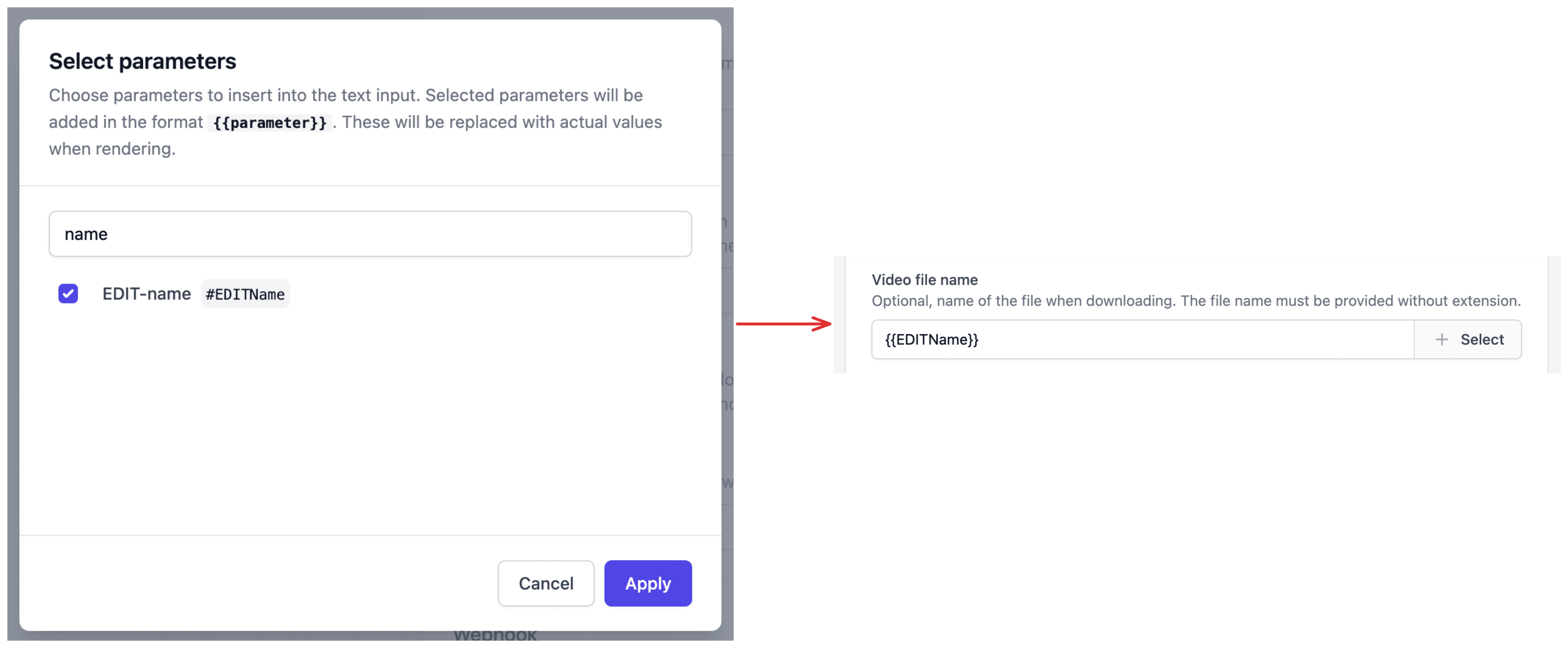
File names can also be dynamic. This can be achieved by referencing a render parameter value, including the project and template names. For example, setting the Video file name to:
{{name}} - {{season:Winter}}will take the value of the name (mandatory) and season (not mandatory, defaults to Winter) render parameters. Thus, you could get files named John Doe - Winter.mp4 or Susan Smith - Summer.mp4.
If you use reference parameters in the file name, you must ensure that the parameters are set before the render is created. Otherwise, the file name will not be generated.
You can also reference parameters via a modal dialog. This dialog contains all available parameters for the render and opens when you click the + Select button next to the Video file name field.
API cURL example - Create render with video file download options Developer guide
curl -X POST \
  -H "Content-Type: application/json" \
  -u "[API_KEY]:" \
  -d '{
        "projectId": "[PROJECT_ID]",
        "options": {
          "attachment": true,
          "attachmentFileName": "my-cool-video"
        }
      }' \
  https://api.plainlyvideos.com/api/v2/renders
Project files
If you need to make further changes to your After Effects project after rendering, you can enable the project files upload option. This will collect all modified files, compress them into a ZIP file, and upload the modified project to the server for easy download.
To enable this feature using the UI, you need to check the Upload project files option under the Project settings.
The project files will be available for download on the Render details page, and the URL will also be exposed in the Render API model under the projectZipUrl field.
API cURL example - Create render with project files download option Developer guide
curl -X POST \
  -H "Content-Type: application/json" \
  -u "[API_KEY]:" \
  -d '{
        "projectId": "[PROJECT_ID]",
        "options": {
          "projectFiles": {
            "uploadEnabled": true
          }
        }
      }' \
  https://api.plainlyvideos.com/api/v2/renders
Upload options
Signed URL upload
Plainly supports uploading the main rendered video file to an arbitrary cloud storage bucket after rendering is complete. This is achieved by providing a signed URL when invoking the render. This URL should allow uploading files using a PUT request.
You can provide additional headers that will be sent with the upload request, such as Content-MD5 or x-goog-*. The Content-Type header is included by default, except in cases where it’s explicitly specified in the additional headers.
API cURL example - Create render with signed URL upload Developer guide
curl -X POST \
  -H "Content-Type: application/json" \
  -u "[API_KEY]:" \
  -d '{
        "projectId": "[PROJECT_ID]",
        "options": {
          "uploads": {
            "signedUrl": {
              "output": {
                "url": "https://your-signed-url-here",
                "headers": {
                  "x-header": "my-value"
                }
              }
            }
          }
        }
      }' \
  https://api.plainlyvideos.com/api/v2/renders